> ## Documentation Index
> Fetch the complete documentation index at: https://promptlayer-hasaan-mcp-docs.mintlify.site/llms.txt
> Use this file to discover all available pages before exploring further.
# MCP Servers
PromptLayer-managed MCP servers let you connect a remote [Model Context Protocol](https://modelcontextprotocol.io/) server once and reuse it across prompts. PromptLayer discovers the server's tools, presents them to the selected model provider, executes tool calls, and returns the results to the model.
Because the connection is managed by PromptLayer, the same saved MCP server can be used with supported providers and API types instead of depending on provider-native MCP support.
## Create an MCP server
1. Open **Settings**.
2. Under **Workspace**, select **MCP Servers**.
3. Click **New MCP Server**.
4. Enter a name, optional description, and the HTTPS URL exposed by the MCP server.
5. Add any authentication headers the server requires.
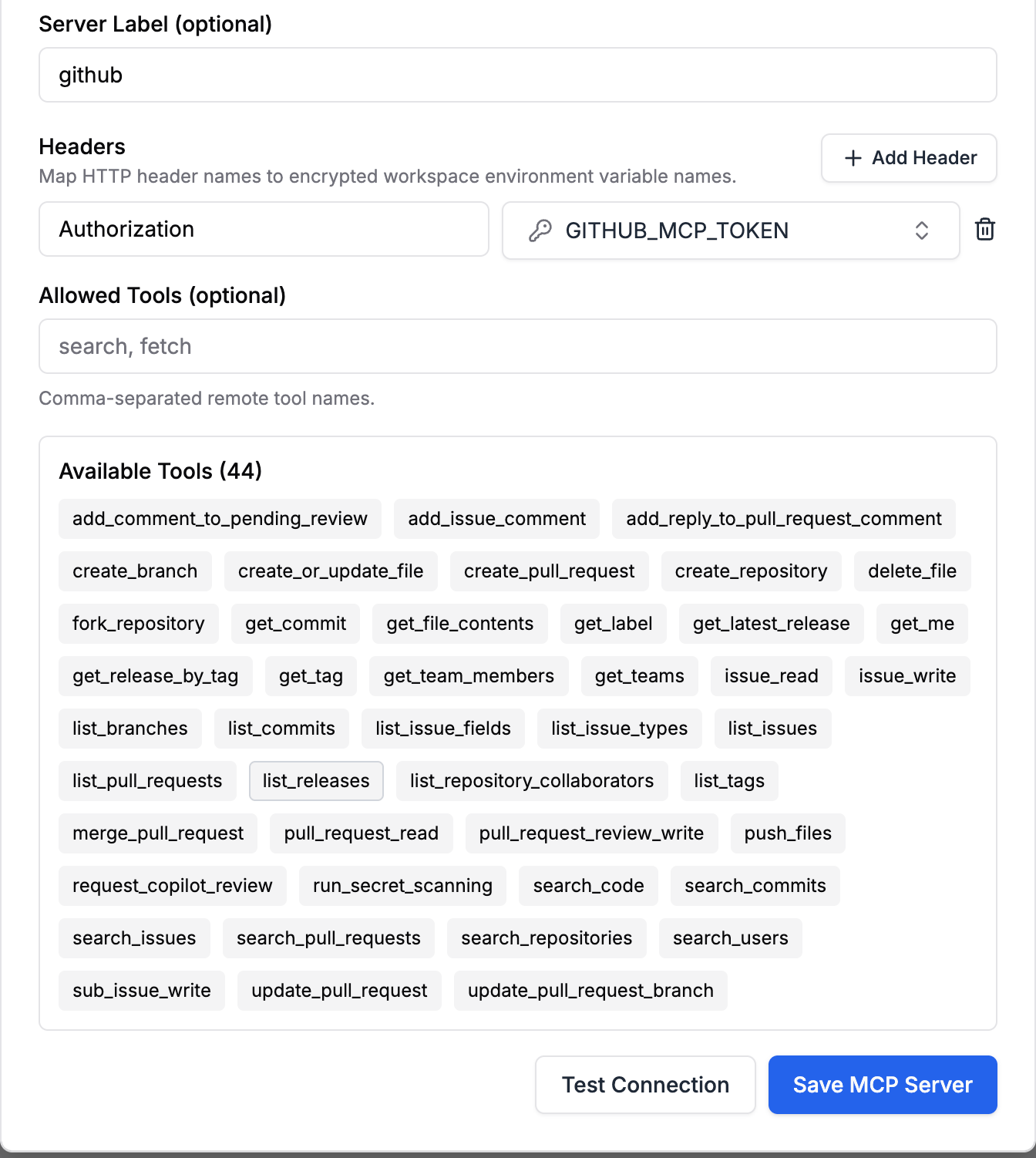
6. Click **Test Connection** to discover the available tools.
7. Optionally choose which discovered tools prompts can use.
8. Save the server.
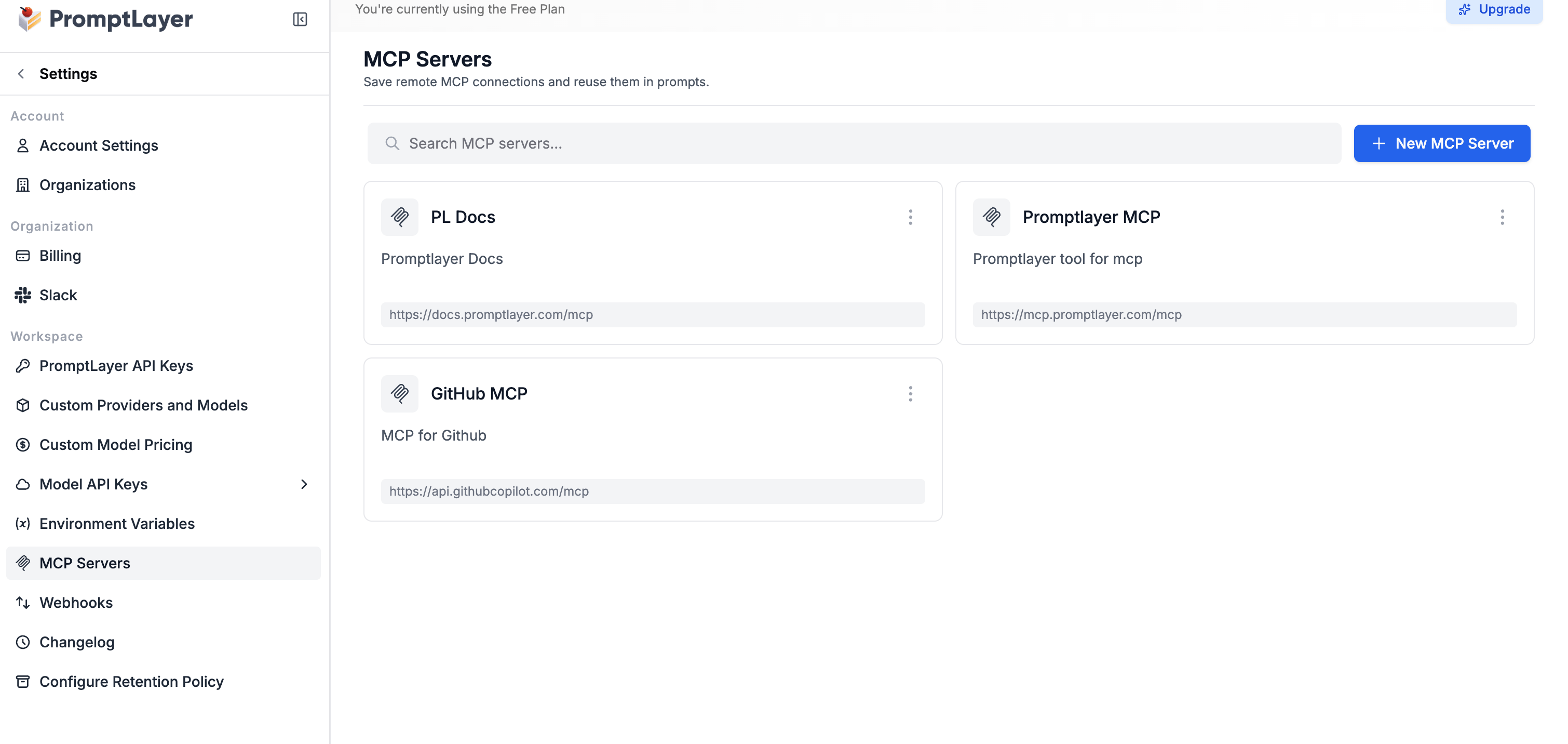 Use a name that identifies the service or purpose, such as `GitHub`, `Support Docs`, or `Internal Search`. This name appears when users add the server to a prompt.
## Configure authentication securely
Header values must reference encrypted workspace environment variables. This keeps credentials out of prompt definitions and prevents users from accidentally saving raw tokens in an MCP configuration.
Create the required secret under **Settings** → **Environment Variables**, then map each header to its environment variable when configuring the MCP server. For example, an `Authorization` header can reference an environment variable whose value includes the complete authorization value expected by the server.
Use a name that identifies the service or purpose, such as `GitHub`, `Support Docs`, or `Internal Search`. This name appears when users add the server to a prompt.
## Configure authentication securely
Header values must reference encrypted workspace environment variables. This keeps credentials out of prompt definitions and prevents users from accidentally saving raw tokens in an MCP configuration.
Create the required secret under **Settings** → **Environment Variables**, then map each header to its environment variable when configuring the MCP server. For example, an `Authorization` header can reference an environment variable whose value includes the complete authorization value expected by the server.
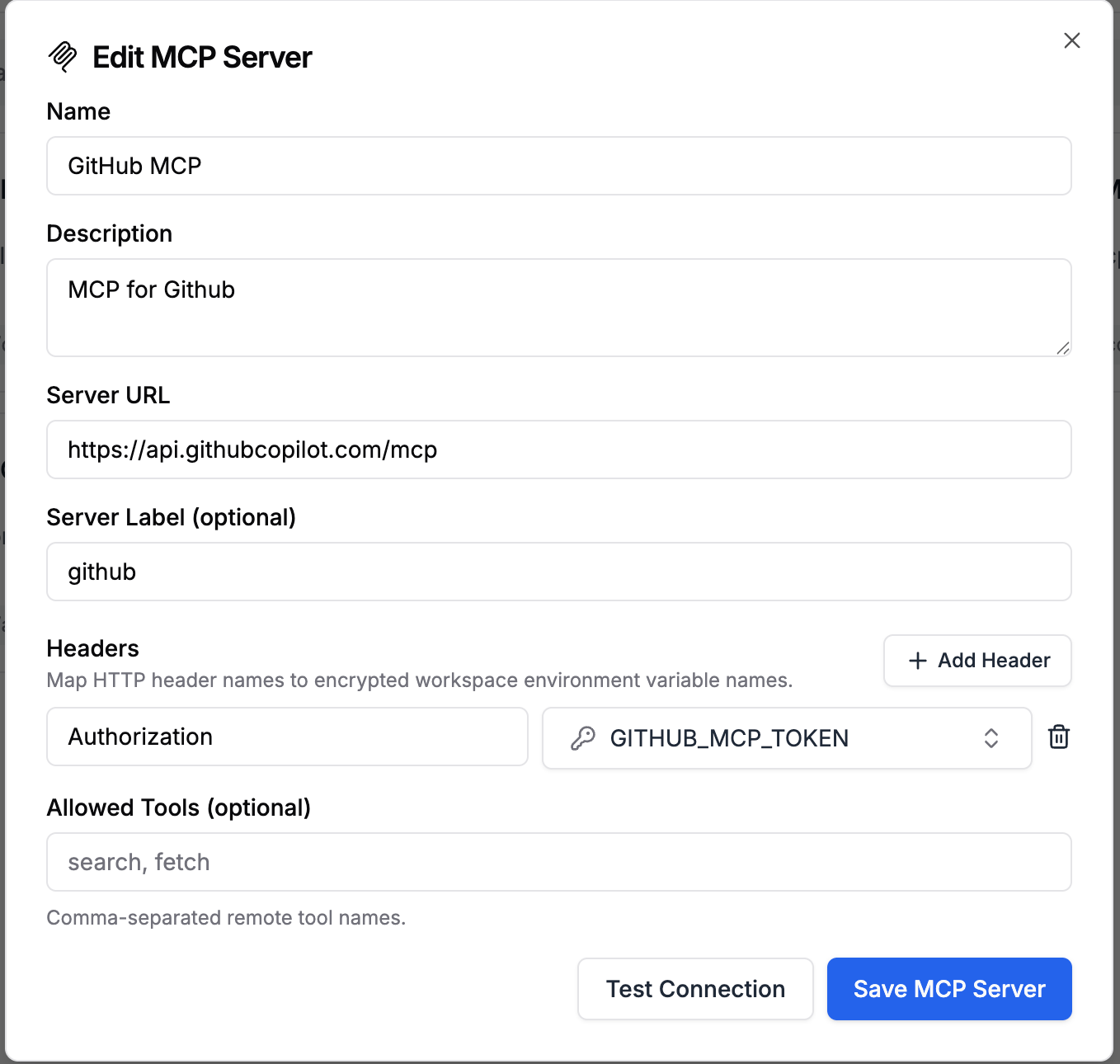 Do not paste API keys or access tokens directly into header fields. Store them as workspace environment variables first.
## Test the connection
**Test Connection** connects to the server and lists the tools it exposes. Use this before saving to confirm that:
* The server URL is reachable.
* Authentication headers are correct.
* Tool names, descriptions, and input schemas are available.
* The server exposes the tools you expect.
You can restrict the connection to selected tools. If no tools are selected, all tools discovered from the server are available to linked prompts.
Do not paste API keys or access tokens directly into header fields. Store them as workspace environment variables first.
## Test the connection
**Test Connection** connects to the server and lists the tools it exposes. Use this before saving to confirm that:
* The server URL is reachable.
* Authentication headers are correct.
* Tool names, descriptions, and input schemas are available.
* The server exposes the tools you expect.
You can restrict the connection to selected tools. If no tools are selected, all tools discovered from the server are available to linked prompts.
 ## Add an MCP server to a prompt
1. Open a chat prompt in the **Playground**.
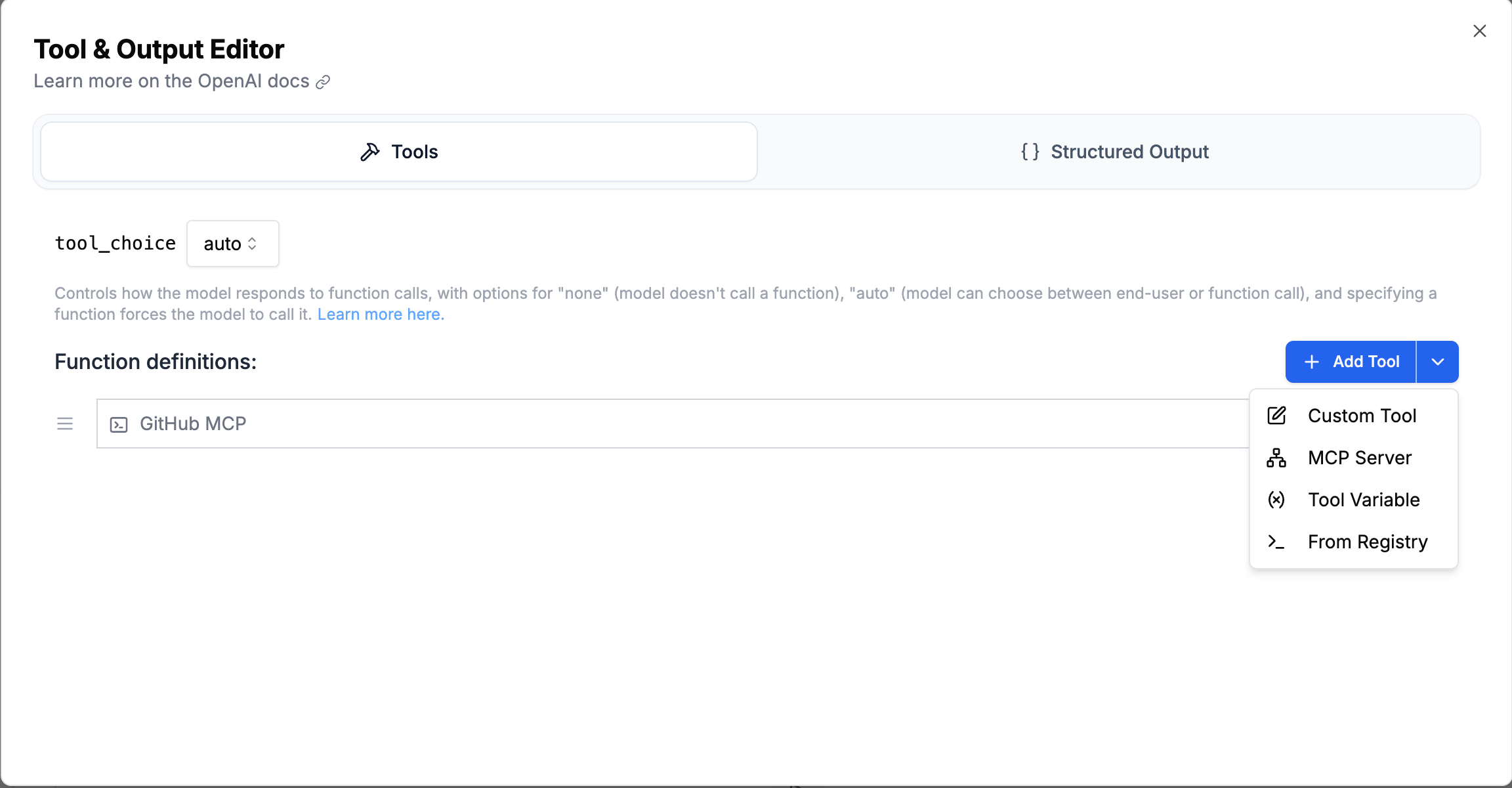
2. Open the **Tool & Output Editor**.
3. Click **Add Tool** → **MCP Server**.
4. Search for the saved server.
5. Select it to add the reference to the prompt.
The prompt displays the saved server's name instead of a generic MCP label.
## Add an MCP server to a prompt
1. Open a chat prompt in the **Playground**.
2. Open the **Tool & Output Editor**.
3. Click **Add Tool** → **MCP Server**.
4. Search for the saved server.
5. Select it to add the reference to the prompt.
The prompt displays the saved server's name instead of a generic MCP label.
 ## How saved references work
A prompt stores a lightweight reference to the saved MCP server:
```json theme={null}
{
"type": "mcp",
"mcp_server_id": 12
}
```
PromptLayer resolves the current server configuration when the prompt runs. Editing the URL, headers, or allowed tools updates every linked prompt automatically; you do not need to create new prompt versions just to receive the MCP configuration change.
MCP server configurations use live, mutable references. This differs from versioned Tool Registry references and prompt versions.
An MCP server cannot be deleted while prompt versions still reference it. Remove the server from those prompts and save new prompt versions before deleting the connection.
## Run with different providers
PromptLayer discovers each MCP capability and translates it into the function-tool format required by the selected provider. When the model calls one of those tools, PromptLayer executes it against the MCP server, sends the result back to the model, and continues the tool-calling loop.
This managed path works independently of whether the provider offers its own native MCP tool type.
## PromptLayer-managed versus provider-native MCP
PromptLayer-managed MCP and provider-native MCP are separate options:
| Option | Use when |
| ---------------------------- | ---------------------------------------------------------------------------------------------------------------------------------------------- |
| **MCP Server** | You want a saved workspace connection that can be reused across supported providers and prompts. PromptLayer discovers and executes its tools. |
| **OpenAI MCP built-in tool** | You specifically want OpenAI Responses API to connect to and execute the MCP server using OpenAI's native MCP format. |
Existing OpenAI-native MCP tools remain available under **Built-In Tool**. They are not converted into PromptLayer-managed MCP server references.
## How saved references work
A prompt stores a lightweight reference to the saved MCP server:
```json theme={null}
{
"type": "mcp",
"mcp_server_id": 12
}
```
PromptLayer resolves the current server configuration when the prompt runs. Editing the URL, headers, or allowed tools updates every linked prompt automatically; you do not need to create new prompt versions just to receive the MCP configuration change.
MCP server configurations use live, mutable references. This differs from versioned Tool Registry references and prompt versions.
An MCP server cannot be deleted while prompt versions still reference it. Remove the server from those prompts and save new prompt versions before deleting the connection.
## Run with different providers
PromptLayer discovers each MCP capability and translates it into the function-tool format required by the selected provider. When the model calls one of those tools, PromptLayer executes it against the MCP server, sends the result back to the model, and continues the tool-calling loop.
This managed path works independently of whether the provider offers its own native MCP tool type.
## PromptLayer-managed versus provider-native MCP
PromptLayer-managed MCP and provider-native MCP are separate options:
| Option | Use when |
| ---------------------------- | ---------------------------------------------------------------------------------------------------------------------------------------------- |
| **MCP Server** | You want a saved workspace connection that can be reused across supported providers and prompts. PromptLayer discovers and executes its tools. |
| **OpenAI MCP built-in tool** | You specifically want OpenAI Responses API to connect to and execute the MCP server using OpenAI's native MCP format. |
Existing OpenAI-native MCP tools remain available under **Built-In Tool**. They are not converted into PromptLayer-managed MCP server references.